
1. Access User Management
- Log in to FleetConnect with your administrator account.
- Navigate to Admin → Manage User and Drivers.
- Confirm you have administrator rights to manage users.
2. Locate the Driver
-
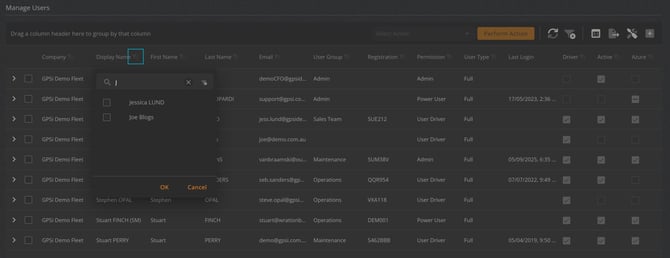
In the Manage Users table, use the filter icon on the Name or Email column.
-
Enter the driver’s details to narrow the list.
-
Click the driver’s row to open the Edit Driver screen.
3. Assign the Default Vehicle
- In the User Settings section, find the Default Vehicle dropdown
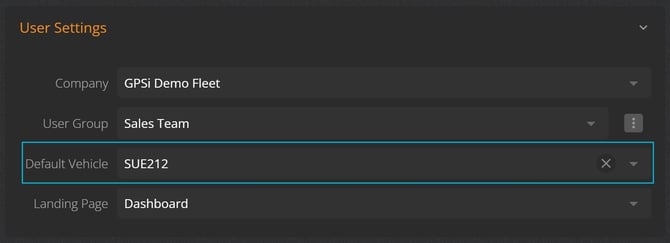
- Select the vehicle you want this driver to be assigned to by default.
4. Save the Update
-
Click Save to apply the change.
-
The selected vehicle is now the driver’s default vehicle for future trips and reporting.
What Happens After Assignment
Once saved, the system updates the vehicle’s configuration:
- The selected driver becomes the default driver for all new trips or bookings.
- If your organisation has automated trip assignment enabled, any unassigned trips for this vehicle will automatically link to this driver.
- Reporting dashboards (utilisation, behaviour, odometer, fuel, events) will attribute future data to this driver unless a poolcar booking or manual Driver ID override changes it.