
1. Access Vehicle Trips
- Log in to FleetConnect with your Administrator or Power User account.
- Navigate to Vehicles → Drop‑Down Icon.
- Select the Trips
 icon to load the vehicle’s trip history.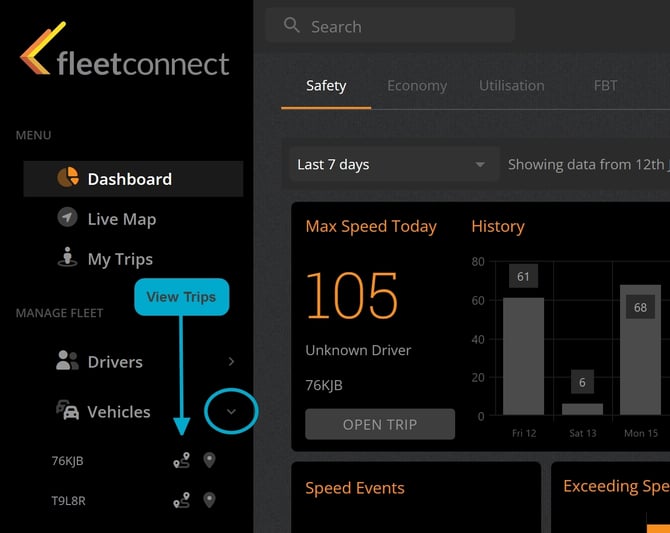
2. Select the Trip
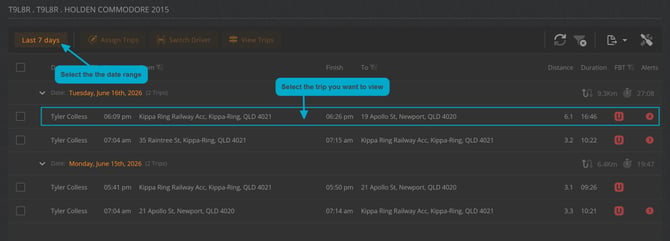
- In the Trip Page table, adjust the date range to expand or narrow the list of trips.
- Click on the trip row you want to view.
3. Loading the Trip Data
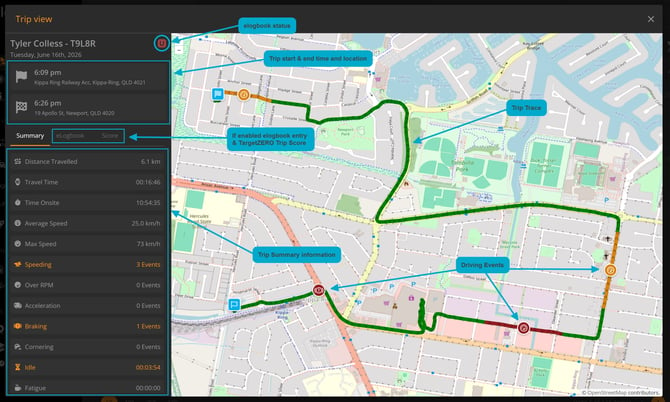
The Trip Trace page displays:
- Summary trip information
- Trip Trace map
- Driver Behaviour events (if enabled)
- E‑Logbook trip assignment (if enabled)
- TargetZERO Trip Score (if enabled)
4. Mouse Over the Trace
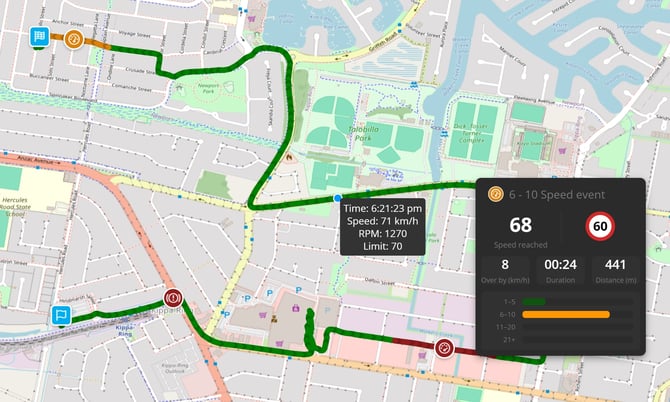
- Hover your mouse over the Trip Trace to view second‑by‑second telemetry, including speed, RPM, and timestamp.
- Click on any event marker to view detailed information about that specific event.
Help Hints
- No Trips Showing? Check the date range — narrow or expand it to reveal additional trips.
- Event Markers Not Visible? Zoom in on the Trip Trace map — some events overlap at wider zoom levels.
- Can’t Find a Vehicle? Ensure your user role has access to that vehicle group in User Management.
- Trip Score Missing? TargetZERO Trip Score appears only if your organisation has TargetZERO enabled.