
1. Access the Live Map
- Log in to FleetConnect with your Administrator or Power User account.
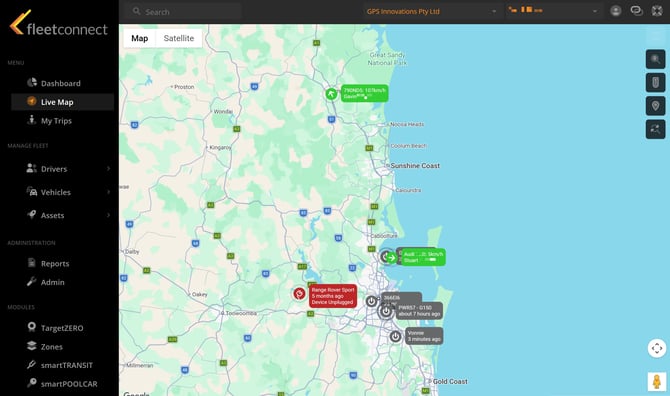
- Navigate to Live Map from the main menu.
- The map will automatically load all vehicles you have permission to view.
2. Understand Vehicle Status Icons
Each vehicle icon represents its current state:
- Green - Ignition On (Driving)
- Grey - Ignition Off
- Purple - Satellite Communication Mode
- Red - Power Removed
- Blue - Asset Tracking Device
- Arrow direction - Indicates the vehicle’s heading of travel
3. View Vehicle Details
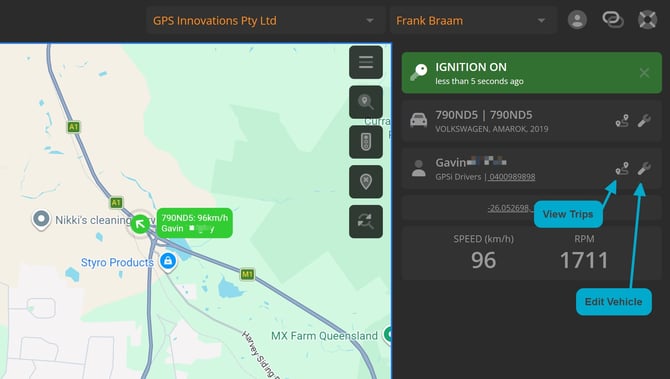
Clicking on a vehicle opens the Vehicle Card, displaying:- Current address
- Speed and RPM (if available)
- Last reported timestamp
- Assigned driver (if applicable)
- Quick links to Trips, Behaviour, and Reports
Live TrackingMode
When you click on a vehicle, the map will automatically follow it and keep it centred. The vehicle will appear as a pulsing icon to indicate active tracking.
To exit Live Tracking, click the Close button next to the IGNITION ON panel.
4. Use Map Tools
- Zoom in/out to view more detail or a wider area.
- Pan the map to explore different regions.
- Toggle the Traffic Layer (if enabled) to view congestion and road conditions.
- Enable Cluster View to group vehicles when zoomed out for easier map navigation.
Help Hints
- Vehicle not appearing? Check your filters — the vehicle may be hidden by group or status.
- Map not updating? The Live Map refreshes automatically, but you can manually refresh your browser if needed.
- Icons overlapping? Zoom in to separate vehicles located close together.