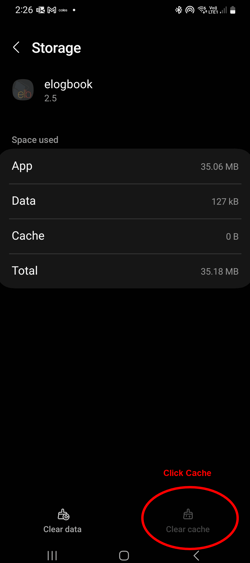
Clearing elogbook & smartID cache from Android app
Clearing an app's cache can help resolve performance issues, free up storage space, and fix temporary glitches. Cached data can accumulate over time and sometimes become corrupted, leading to app slowdowns or errors.
Below are the steps to clear the cache in the elogbook & smartID app running on Android phones.
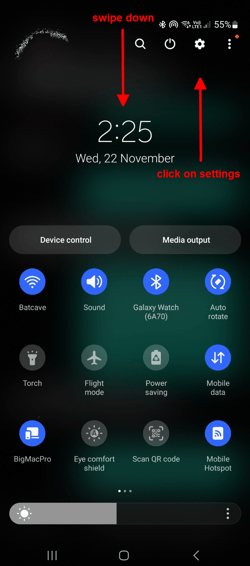
1. Open Settings: Swipe down from the top and click on Settings app on your Android phone.
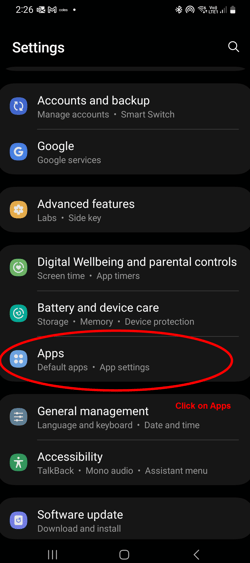
2. General: Scroll down and select Apps.
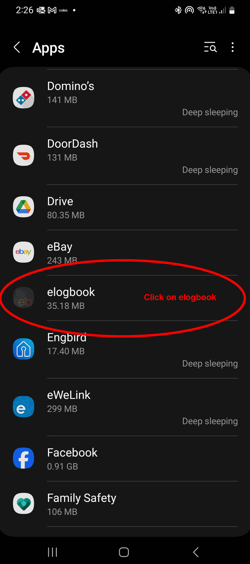
3. Find elogbook or smartID: Scroll down and click on elogbook or smartID.
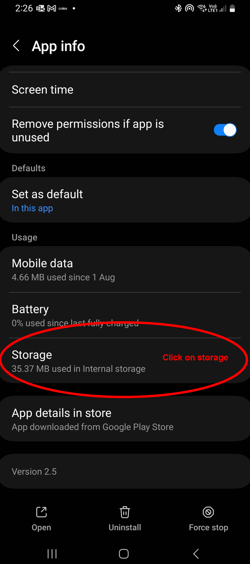
4. Storage: Scroll through and click on Storage.
5. Clear Cache: Tap on Clear cache. This will free up storage used by the app but keep its documents and data.
Close all apps and then reopen the app. You may need to re-enter your details.