
1. Dropping Off via Email or Calendar Link
-
At the end of your booking period, open the Drop‑Off email or calendar event you received when you picked up the vehicle.
-
Select the Drop Off button.
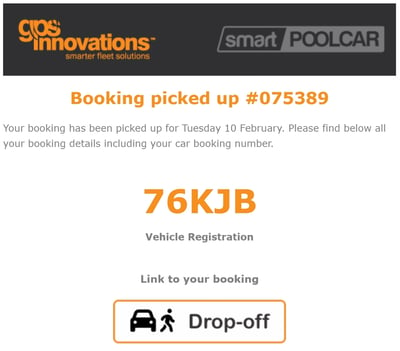
-
You’ll be taken directly to the Drop Off Vehicle page
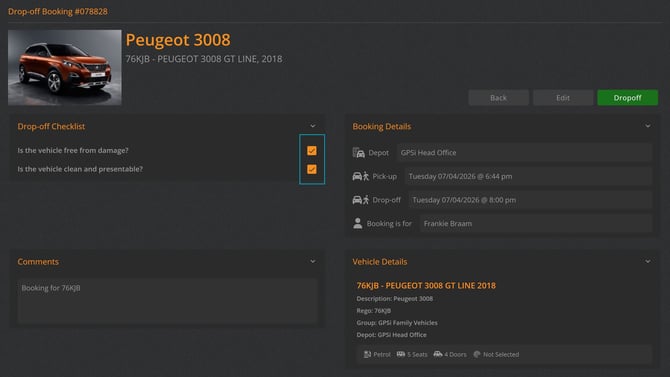
2. Dropping Off from the My Booking Tab
-
From the side menu, select Modules → smartPOOLCAR.
-
Open the My Booking tab and locate your active booking.
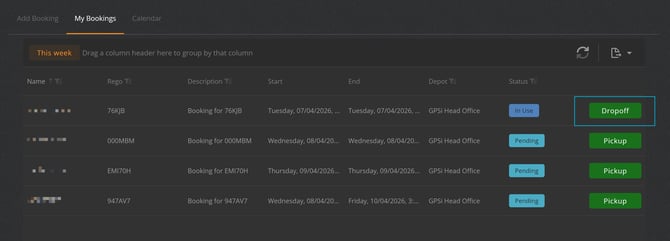
-
Select the booking you wish to drop off.
-
This will open the Drop Off Vehicle popup
3. Completing the Drop‑Off Form
Depending on your organisation’s configuration:
- Enter the final vehicle odometer reading, if prompted.
- Complete any required Vehicle Post‑Check questions (e.g., cleanliness, damage, fuel level).
- Confirm the vehicle has been returned to the correct depot or parking location.
- Select Accept to finalise the drop‑off
IMPORTANT
You must Drop Off your booking when you return the vehicle. If you don’t, the booking will stay open, the vehicle will remain unavailable for other users, and you may be assigned to any trips recorded in subsequent bookings.
What Happens After Drop‑Off
- The vehicle status updates to Available for the next user.
- Your booking is marked as Completed.
- Any trips recorded during your booking are finalised and remain assigned to the driver listed on the booking (if Assign Driver to Trips is enabled in your company’s configuration).
- A confirmation email is sent to you