
- Log in to FleetConnect.
- From the left‑hand navigation menu, select Reports.
- You’ll see grouped report categories depending on Company Modules such as:
- Driver Reports
- Vehicle Reports
- Diagnostic Reports
- Utilisation Reports
- TargetZERO Reports
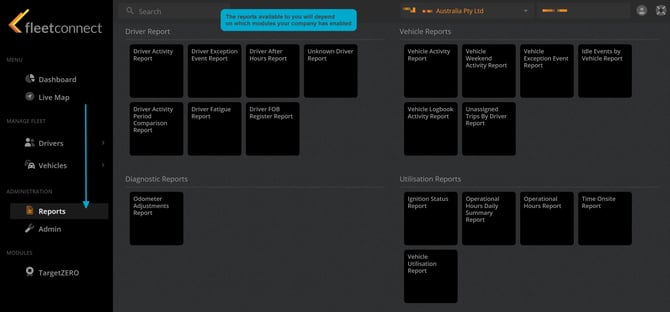
Each category contains tiles representing individual report types. Selecting a tile opens the Report Viewer.
2. Selecting a Report- Browse the report tiles.
- Click the report you want to run (e.g., Vehicle Activity Report).
- The tile will highlight (orange) to confirm your selection.
- You’ll be taken to the Report Viewer screen.
If the viewer displays “Waiting for parameter values…”, it means the report requires input before it can be generated.
3. Using the Report ViewerThe Report Viewer is divided into two main areas:
A. Main Report Panel
This is where the generated report will appear. Until parameters are provided, it remains blank.
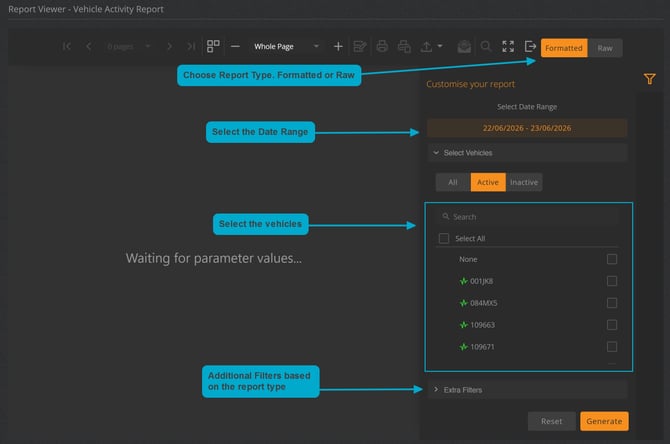
B. Customisation Panel (Right Side)
This panel allows you to configure the report before running it. Depending on the report type, you may see:
- Date Range Selector Choose the start and end dates for the report.
- Status Filters For example, in the Vehicle Activity Report:
- All
- Active
- Inactive
- Vehicle or Driver Selection Tick one or multiple items from the list
Once all required fields are set, the report will automatically generate or provide a Run Report button depending on your system configuration.
4. Filtering & Adjusting Your Report
You can refine your report at any time:
- Adjust the date range.
- Change the activity status filter.
- Select or deselect vehicles/drivers.
- The report will refresh to reflect your new parameters.
This makes it easy to compare days, drivers, or vehicles without leaving the viewer.
6. Exporting & SharingMost reports include export options such as:
- Excel
- CSV
Use these for:
- Compliance submissions
- Internal reporting
- Driver performance reviews
- Operational analysis
Exports reflect the exact filters and parameters currently applied.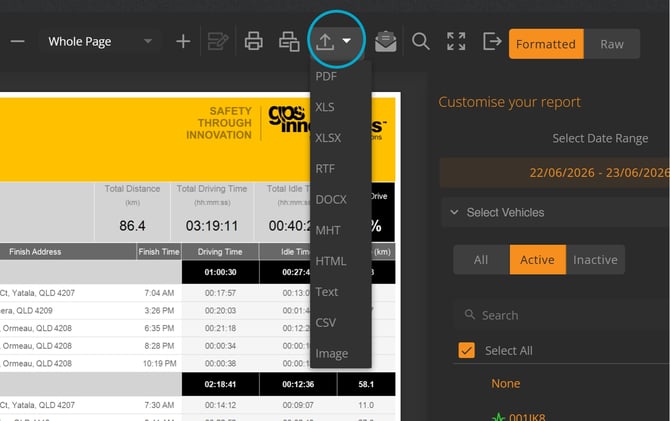
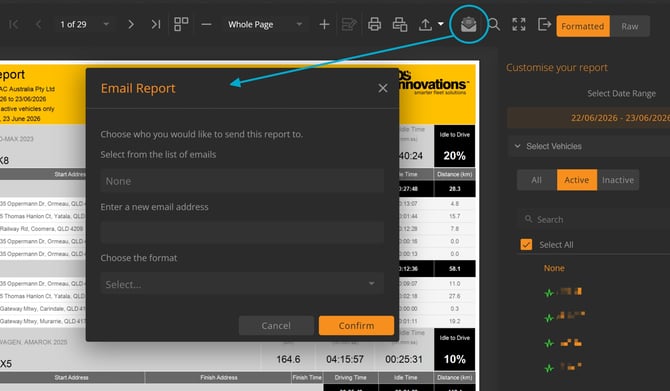
7. Email out directly from the Report Viewer
Quickly share formatted or raw reports with colleagues, managers, or clients without leaving FleetConnect.
Tips for Effective Use
- Formatted vs Raw Output — Choose Formatted for a polished, ready‑to‑read report, or Raw for a clean data extract that’s easy to export, manipulate, or integrate into other spreadsheets and systems.
- Use narrow date ranges to improve loading speed and sharpen insights.
- Filter by vehicle status to quickly separate active and inactive fleet behaviour.
- Monitor idle time to spot fuel waste, inefficiencies, or potential unauthorised stops.
- Leverage summary metrics for fast, high‑level operational reporting.
- Export regularly to maintain accurate audit trails and support compliance needs.
8. Troubleshooting
“Waiting for parameter values…” → Ensure you’ve selected:
- A valid date range
- At least one vehicle or driver
- Any required status filters
Report loads but shows no data → Try expanding the date range or selecting additional vehicles/drivers.
Slow loading → Reduce the date range or number of selected vehicles.