
1. Access User Management
- Log in to FleetConnect with your administrator account.
- Navigate to Admin → Manage User and Drivers.
- Confirm you have administrator rights to manage users.
2. Create a New User Record
- Click the Add (+) icon in the top-right corner of the table grid.

- Enter the required details:
- Full Name (first and last)
- Display Name (usually the full name; used in reports and search filters)
- Email Address (must be unique; used for password resets and notifications
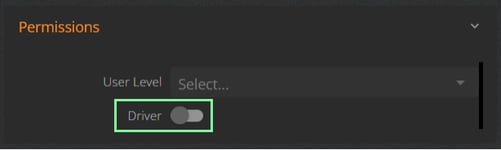
- Permission Level (e.g., Admin, User, Driver)
- Driver Toggle (enable if the user is a driver; this ensures their name appears in driver-related reports and filters
- Click Save to store the new record.
3. Assign Group or Vehicle
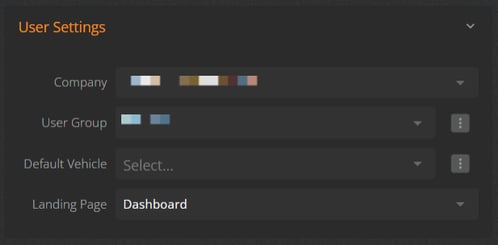
- Select the Group the user belongs to.
- If applicable, assign a Default Vehicle.
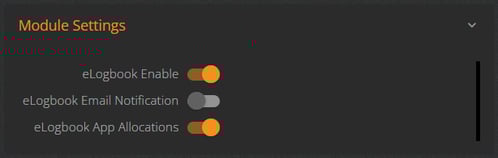
4. Turn on Modules
- Select the Modules the user will have access to.
- Only modules available to your organisation will be shown.
4. Finalise and Confirm
- Click Save again to finalise the user record.
5. Share Login Details
Send the user an Invitation to create their password:- Click the Paper Airplane icon to send the invitation to the user.

- The invitation will expire in 7 days. If the user does not register within that time, an Admin must resend the invitation.
- Remind them they can reset their password via the login screen if needed.
Quick Tips
- Review existing user configurations to maintain consistency
- Each user’s email address must be unique in FleetConnect.
- Invitations expire after 7 days; resend if necessary.