
1. Open the smartPOOLCAR Module
- From the side menu, select Modules → smartPOOLCAR.
- The Add Booking view opens by default.
- Select the Depot you want to book the vehicle from.
- Choose your Pickup Date & Time using the date and time selector.
- Choose your Drop‑off Date & Time.
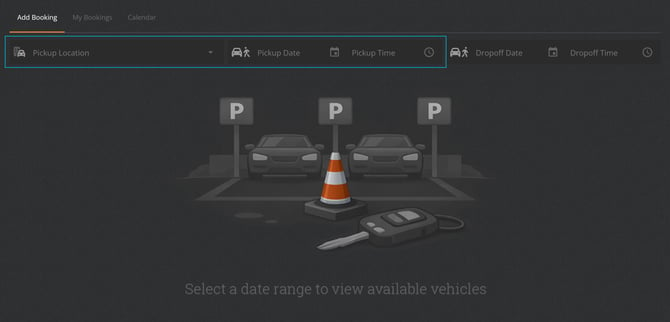
- Once selected, the system will load all available vehicles.
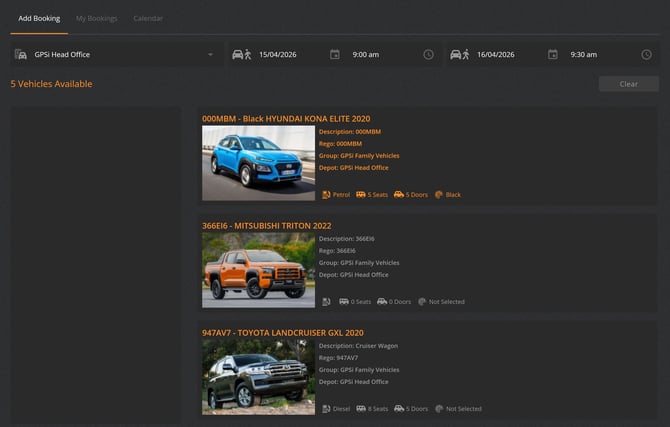
2. Select Your Vehicle
Browse the list of available vehicles. Each row displays key details, including:
- Vehicle name and model
- Registration number
- Depot location
- Availability status
Select the vehicle you want to book.
3. Update Booking Details
After selecting a vehicle, you may wish to update:
- Pickup and return dates and times
- Trip reason or comments
Review all details and adjust as needed.
4. Confirm the Booking
- Select Book to finalise your reservation.
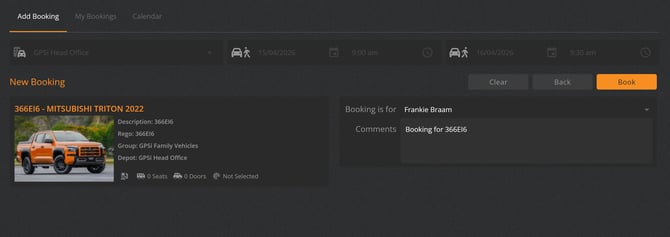
- Your confirmed booking will be created immediately
5. Verify Your Booking
- You will be taken to My Bookings, where you can view all your upcoming bookings.
- A confirmation email will also be sent to you, including a link to pick up the vehicle when the time arrives.
Booking Tips
-
You can only pick up the vehicle within 60 minutes of the booking start time.
-
The confirmation email includes a calendar event you can add to your Outlook calendar.
-
Only Admin users can book on behalf of another user by changing the “booking for” user.