
1. Access User Management
- Log in to FleetConnect with your administrator account.
- Navigate to Admin → Manage Groups.
- Confirm you have administrator rights to manage groups.
2. Create a New User Group or Vehicle Group
User Groups and Vehicle Groups are displayed on the same page.
- In the relevant table (User Groups or Vehicle Groups), select the Add (+) icon in the top‑right corner.
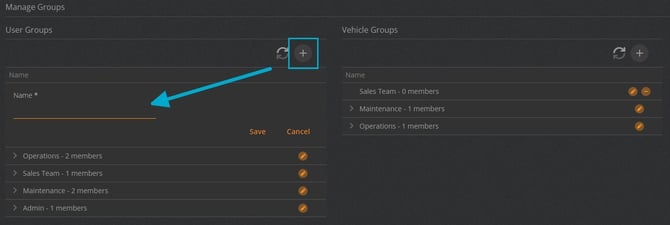
- Enter the required details:
- Group Name (commonly a department, business unit, or location)
- Click Save to create the new group.
3. Edit an Existing User Group or Vehicle Group
- In the group list, select the Edit (
 ) icon for the group you want to modify.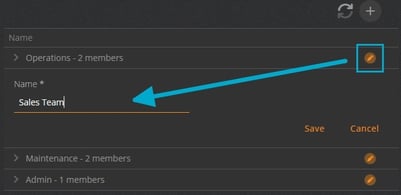
- Update the details as needed.
- Click Save to apply the changes.
4. Allocating Users and Vehicle Groups
- See below links to Allocate a User to a User Group or a Vehicle to a Vehicle Group
Notes
-
A group can only be deleted if it has no users or vehicles assigned.
-
Additional grouping options are available:
-
Cost Centres
-
For smartPOOLCAR users: Depots are an additional group used as geofenced areas
-